Apple Clone
Learn how to create a simple clone of the Apple website using only HTML and CSS
NarakCODE • June 7, 2024
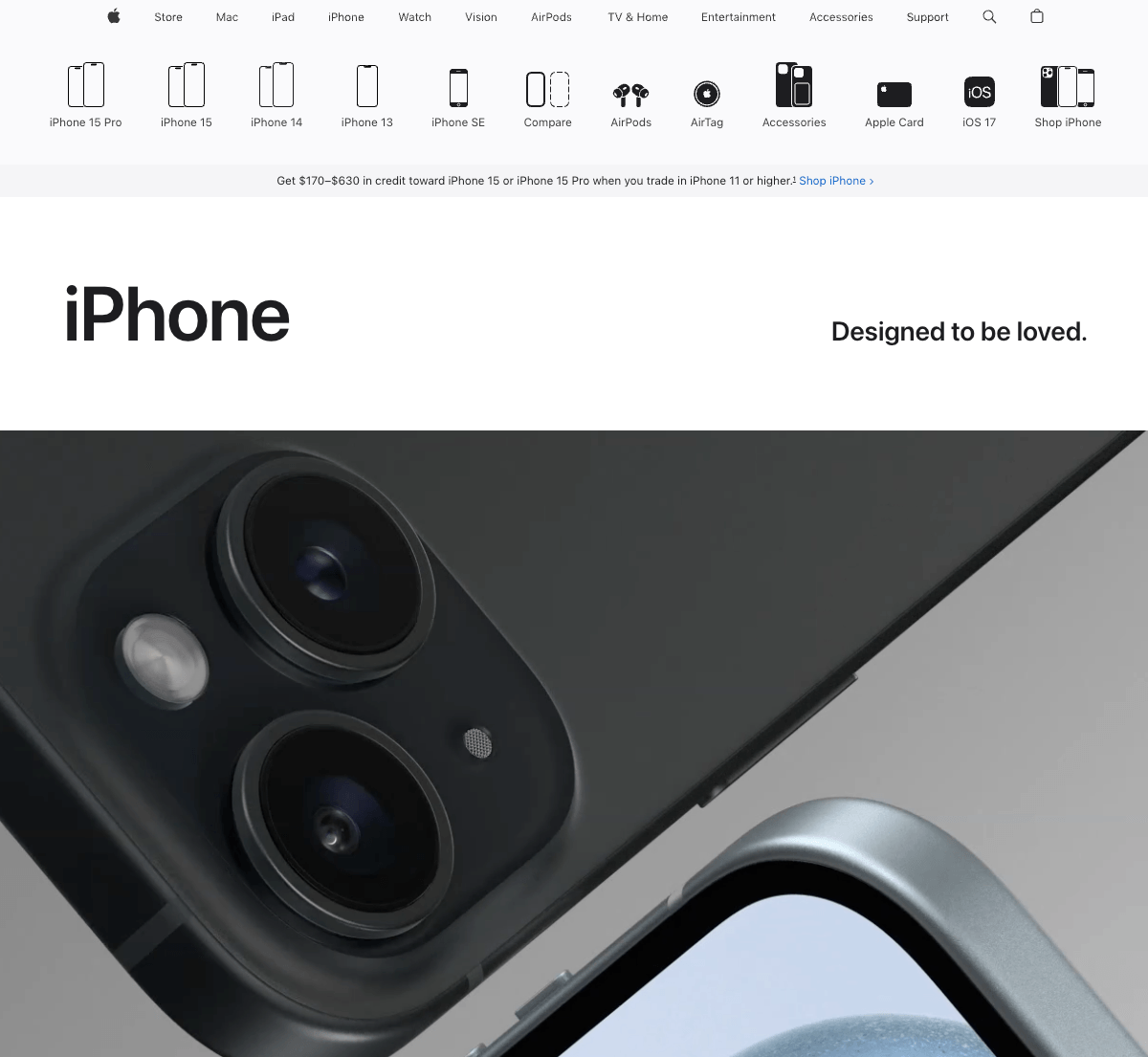
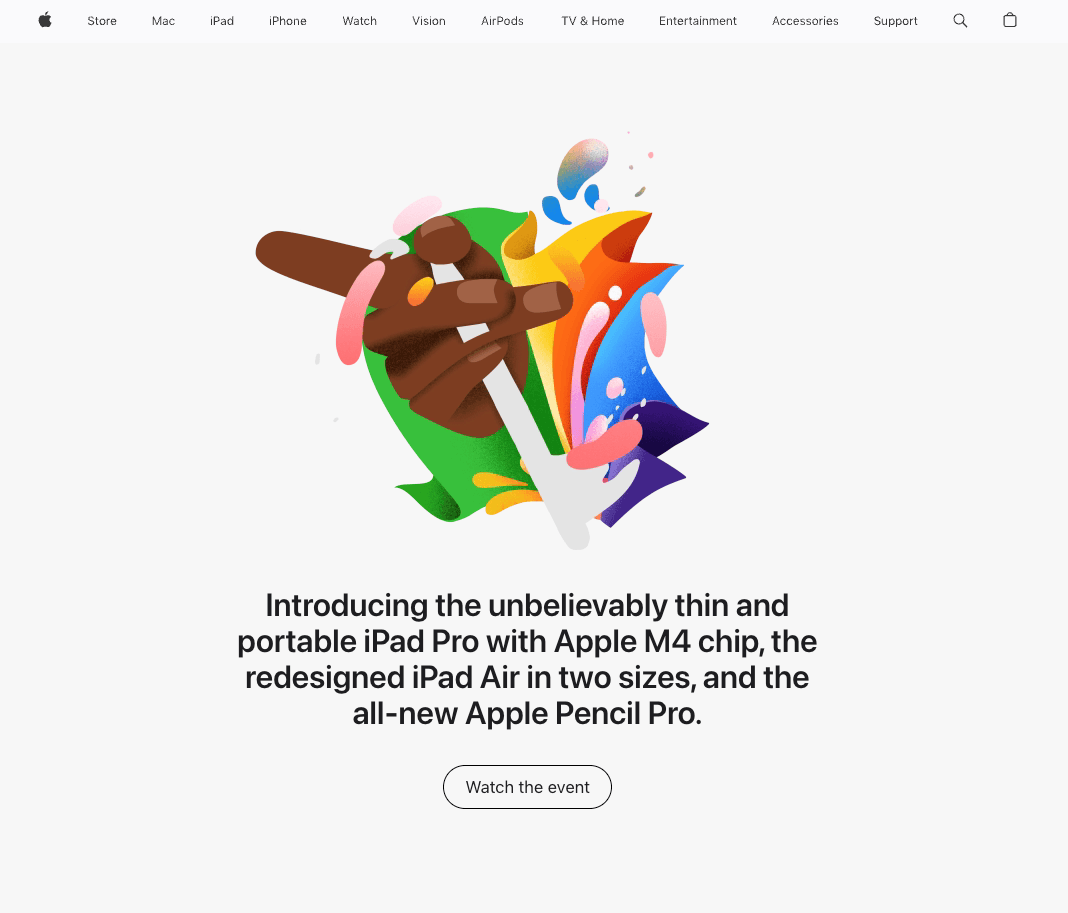
Learn how to create a simple clone of the Apple website using only HTML and CSS. Follow this step-by-step tutorial for web development beginners and learn how to structure HTML, style with CSS, and add media files.
Apple Introduction
Apple, one of the leading technology companies in the world, is famous for its sleek and simple designs. In fact, many people choose to clone Apple’s website because of its sleek website design.
Creating a website can be a daunting task, especially if you're new to web development. This tutorial will guide you through the process of creating a simple clone of the Apple website using only HTML, Tailwindcss and JavaScript. We'll cover everything from analyzing the design of the original website to fine-tuning the clone to make it look as professional as possible.
Let's start making an amazing apple website clone using HTML and Pure CSS step by step.
Download the Project from my repository on GitHub : NarakCODE - Apple Clone
Prerequisites:
Before starting this tutorial, you should have a basic understanding of HTML, CSS and JavaScript Basics. Additionally, you will need a code editor such as Visual Studio Code to follow my journey and save your code.
1. Directory Structure
📁 pages - Contains HTML files for each individual page
- index.html - The home page of the website.
- store.html - Page displaying various Apple products for sale.
- mac.html - Page dedicated to the Mac product line.
- ipad.html - Page showcasing the iPad product line.
- iphone.html - Page featuring the iPhone product line.
- watch.html - Page focusing on the Apple Watch product line.
📁 components - Includes JavaScript and HTML files for reusable components
- navbar.js - Contains the logic and structure for a reusable navigation bar component. Handles interactivity within the navbar.
- footer.js - Defines the footer component, used across various pages. Dynamically generates HTML for footer links and manages their display on different screen sizes.
- primary-btn.js - for primary button
- outline-btn.js - manage the outline button components. It might include similar functionalities such as event listeners for user interactions and dynamic CSS effects.
- header.js - Contains the logic for initializing and managing header components on the site. It could include dynamic content loading or animations specific to the header sections of the pages.
Here’s your information reformatted in plain text:
📁 styles - Stores CSS files and Tailwind configuration files. Defines the visual layout and aesthetics of the website.
📁 scripts - Contains JavaScript files for page-specific or app-wide functionality. These scripts handle dynamic and interactive elements on the website.
📁 assets - Includes images, icons, and other static files used across the website. These assets enhance the visual appeal and usability of the website.
2. File Naming Conventions
- HTML files: Name according to their function within the site, using lowercase and hyphens (e.g.,
contact-page.html). - CSS files: Use lowercase and hyphens, and match names to their corresponding HTML where applicable (e.g.,
store-page.css). - JavaScript files: Similar to CSS, use lowercase and ensure names are descriptive of their function (e.g.,
form-validation.js).
3. HTML Structure
- Start with a standard DOCTYPE and
<html>element. - Include meta tags for charset and viewport in every HTML file.
- Link external CSS or any libraries, icons, etc., at the top of the
<head>and scripts at the bottom of the<body>to ensure proper loading. - Use semantic HTML and ensure accessibility standards are met.
4. CSS/Styles
- Utilize TailwindCSS for utility classes to maintain consistency and reduce the amount of custom CSS needed.
- For custom styles, create separate CSS files linked to specific components or pages.
- Use CSS variables for colors, fonts, and other reusable properties to ensure consistency and ease of maintenance.
5. JavaScript/Scripts
- Use modern JavaScript (ES6+) for better performance and readability.
- Organize scripts into modules and use imports/exports to share functionality between files.
- Attach event listeners and manipulate the DOM only after the document has fully loaded.
6. Components
- Create reusable components for elements that appear on multiple pages (e.g., headers, footers, buttons).
- Use data attributes or classes to customize components without altering the core functionality.
- Document each component's usage and options in a README file within the
/componentsdirectory.
This JavaScript code defines a custom HTML element <primary-btn-component> which displays a styled button. The button's style is defined using Tailwind CSS classes for background color, padding, text size, border, and hover effects. The createPrimaryBtn function generates the button's HTML with the provided text. The PrimaryBtnComponent class, extending HTMLElement, uses this function to set its inner HTML based on its text content when it is added to the DOM. The custom element is then registered using customElements.define.
7. Version Control
- Use Git for version control. Create a
.gitignorefile to exclude unnecessary files (e.g.,node_modules,.DS_Store). - Commit changes with descriptive messages that clearly state what has been added, changed, or fixed.
9. Testing and Deployment
- Implement a basic testing strategy using tools like Jest for JavaScript.
- Deploy on vercel.com connected by GitHub.